> ## Documentation Index
> Fetch the complete documentation index at: https://langchain-5e9cc07a-preview-improv-1769100537-6cffc34.mintlify.site/llms.txt
> Use this file to discover all available pages before exploring further.
# Deep Agents CLI
> Interactive command-line interface for building with Deep Agents
The Deep Agents CLI is an open source coding assistant that runs in your terminal and retains persistent memory.
Your CLI agents maintain context across sessions, learn project conventions, and execute code with approval controls.
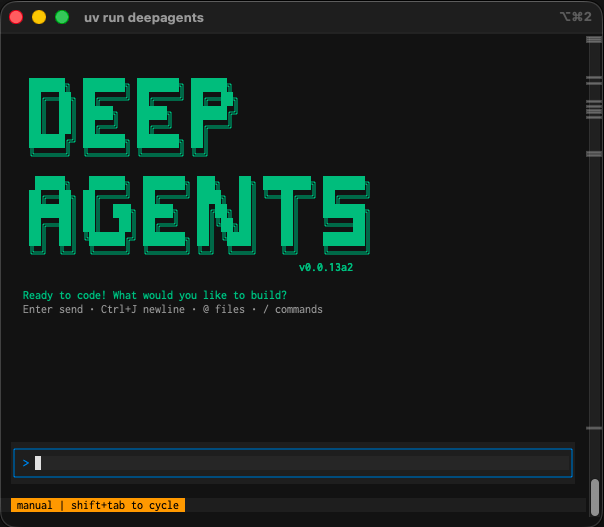 The Deep Agents CLI has the following built-in capabilities:
* **File operations** - read, write, and edit files in your project with tools that enable agents to manage and modify code and documentation.
* **Shell command execution** - execute shell commands to run tests, build projects, manage dependencies, and interact with version control systems.
* **Web search** - search the web for up-to-date information and documentation (requires Tavily API key).
* **HTTP requests** - make HTTP requests to APIs and external services for data fetching and integration tasks.
* **Task planning and tracking** - break down complex tasks into discrete steps and track progress through the built-in todo system.
* **Memory storage and retrieval** - store and retrieve information across sessions, enabling agents to remember project conventions and learned patterns.
* **Human-in-the-loop** - require human approval for sensitive tool operations.
* **Skills** - extend agent capabilities with custom expertise and instructions stored in skill directories.
[Watch the demo video](https://youtu.be/IrnacLa9PJc?si=3yUnPbxnm2yaqVQb) to see how the Deep Agents CLI works.
## Quick start
Export as an environment variable:
```bash theme={null}
export ANTHROPIC_API_KEY="your-api-key"
```
Or create a `.env` file in your project root:
```bash theme={null}
ANTHROPIC_API_KEY=your-api-key
```
```bash Install globally theme={null}
uv tool install deepagents-cli
deepagents
```
```bash Run (without global install) theme={null}
uvx deepagents-cli
```
```txt theme={null}
> Create a Python script that prints "Hello, World!"
```
The agent proposes changes with diffs for your approval before modifying files.
Enable LangSmith tracing:
```bash theme={null}
export LANGCHAIN_TRACING_V2=true
export LANGCHAIN_API_KEY="your-api-key"
```
Configure agent tracing for tool calls and agent decisions:
```bash theme={null}
export DEEPAGENTS_LANGSMITH_PROJECT="my-agent-project"
```
Configure user code tracing for code executed with shell commands:
```bash theme={null}
export LANGSMITH_PROJECT="my-user-code-project"
```
Install locally if needed:
```bash pip theme={null}
pip install deepagents-cli
```
```bash uv theme={null}
uv add deepagents-cli
```
The CLI automatically selects a provider based on which API keys are available. If multiple keys are set, it uses the first match in this order:
| Priority | API key | Default model |
| -------- | ------------------- | ---------------------------- |
| 1st | `OPENAI_API_KEY` | `gpt-5-mini` |
| 2nd | `ANTHROPIC_API_KEY` | `claude-sonnet-4-5-20250929` |
| 3rd | `GOOGLE_API_KEY` | `gemini-3-pro-preview` |
To use a different model, pass the `--model` flag explicitly. For example, to use Claude Opus 4.5:
```bash theme={null}
deepagents --model claude-opus-4-5-20251101
```
Enable web search (optional):
```bash theme={null}
export TAVILY_API_KEY="your-key"
```
API keys can be set as environment variables or in a `.env` file.
## Configuration
| Option | Description |
| ---------------------- | ------------------------------------------------------------------------------------ |
| `--agent NAME` | Use named agent with separate memory |
| `--auto-approve` | Skip tool confirmation prompts (toggle with `Ctrl+T`) |
| `--resume`, `-r` | Resume most recent session |
| `--sandbox TYPE` | Execute in [remote sandbox](#use-remote-sandboxes): `modal`, `daytona`, or `runloop` |
| `--sandbox-id ID` | Reuse existing sandbox |
| `--sandbox-setup PATH` | Run setup script in sandbox |
| `--version` | Display version |
| Command | Description |
| ----------------------------------------------- | -------------------------------------------------------------- |
| `deepagents list` | List all agents |
| `deepagents skills` | Manage agent skills - create, list, and view skill information |
| `deepagents help` | Show help |
| `deepagents reset --agent NAME` | Clear agent memory and reset to default |
| `deepagents reset --agent NAME --target SOURCE` | Copy memory from another agent |
| `deepagents threads list` | List all sessions |
| `deepagents threads delete ID` | Delete a session |
## Interactive mode
Use these commands within the CLI session:
* `/remember` - Review conversation and update memory and skills
* `/tokens` - Display token usage
* `/clear` - Clear conversation history
* `/exit` or `/quit` - Exit the CLI
* `/help` - Show help
* `/threads` - Show session info
* `/version` - Show version
Execute shell commands directly by prefixing with `!`:
```bash theme={null}
!git status
!npm test
!ls -la
```
| Shortcut | Action |
| --------------------------------------------- | -------------------------------------- |
| `Enter` | Submit |
| `Option+Enter` (Mac) or `Alt+Enter` (Windows) | Newline |
| `Ctrl+E` | External editor |
| `Shift+Tab` | Toggle auto-approve |
| `@filename` | Auto-complete files and inject content |
| `Ctrl+C` | Interrupt |
| `Ctrl+D` | Exit |
## Set project conventions with memories
Agents store information in `~/.deepagents/AGENT_NAME/memories/` as markdown files using a memory-first protocol:
1. **Research**: Searches memory for relevant context before starting tasks
2. **Response**: Checks memory when uncertain during execution
3. **Learning**: Automatically saves new information for future sessions
The agent organizes its memories by topic with descriptive filenames:
```
~/.deepagents/backend-dev/memories/
├── api-conventions.md
├── database-schema.md
└── deployment-process.md
```
When you teach the agent conventions:
```bash theme={null}
uvx deepagents-cli --agent backend-dev
> Our API uses snake_case and includes created_at/updated_at timestamps
```
It remembers for future sessions:
```bash theme={null}
> Create a /users endpoint
# Applies conventions without prompting
```
## Provide project or user context
[`AGENTS.md` files](https://agents.md/) files provide persistent memory that is always loaded at session start.
You can provide global user memory for the agent in `~/.deepagents/agent/AGENTS.md`.
This file is always loaded when you start the Deep Agents CLI.
For project-specific memory, you can add context to `.deepagents/AGENTS.md` in any project's root folder as long as the project uses git.
When you start the CLI from anywhere within the project's folder, the CLI will find the project's root folder by checking for a containing `.git` folder.
Both global and project-level `AGENTS.md` files are loaded together and appended to the system prompt at startup.
The agent will update them as you use the agent and provide it with additional information.
If you would like to explicitly prompt your deep agent to update skills and memory based on the current context from the thread use the `/remember` command which loads a custom instruction to review the context and perform updates.
To add more structured project knowledge in additional memory files, you can add them in `.deepagents/` and reference them in the `AGENTS.md` file.
You must reference additional files in the `AGENTS.md` file for the agent to be aware of these files.
The additional files will not be read on startup but the agent can reference and update them when needed.
## Use remote sandboxes
Execute code in isolated remote environments for safety and flexibility. Remote sandboxes provide the following benefits:
* **Safety**: Protect your local machine from potentially harmful code execution
* **Clean environments**: Use specific dependencies or OS configurations without local setup
* **Parallel execution**: Run multiple agents simultaneously in isolated environments
* **Long-running tasks**: Execute time-intensive operations without blocking your machine
* **Reproducibility**: Ensure consistent execution environments across teams
To use a remote sandbox, follow these steps:
1. Configure your sandbox provider ([Runloop](https://www.runloop.ai/), [Daytona](https://www.daytona.io/), or [Modal](https://modal.com/)):
```bash theme={null}
# Runloop
export RUNLOOP_API_KEY="your-key"
# Daytona
export DAYTONA_API_KEY="your-key"
# Modal
modal setup
```
2. Run the CLI with a sandbox:
```bash theme={null}
uvx deepagents-cli --sandbox runloop --sandbox-setup ./setup.sh
```
The agent runs locally but executes all code operations in the remote sandbox. Optional setup scripts can configure environment variables, clone repositories, and prepare dependencies.
3. (Optional) Create a `setup.sh` file to configure your sandbox environment:
```bash theme={null}
#!/bin/bash
set -e
# Clone repository using GitHub token
git clone https://x-access-token:${GITHUB_TOKEN}@github.com/username/repo.git $HOME/workspace
cd $HOME/workspace
# Make environment variables persistent
cat >> ~/.bashrc <<'EOF'
export GITHUB_TOKEN="${GITHUB_TOKEN}"
export OPENAI_API_KEY="${OPENAI_API_KEY}"
cd $HOME/workspace
EOF
source ~/.bashrc
```
Store secrets in a local `.env` file for the setup script to access.
Sandboxes isolate code execution, but agents remain vulnerable to prompt injection with untrusted inputs. Use human-in-the-loop approval, short-lived secrets, and trusted setup scripts only.
Note that sandbox APIs are evolving rapidly, and we expect more providers to support proxies that help mitigate prompt injection and secrets management concerns.
## Use skills
You can use [skills](/oss/python/deepagents/skills) to provide your deep agent with new capabilities and expertise.
Once you have added skills your deep agent will automatically make use of them and update them as you use the agent and provide it with additional information.
If you would like to explicitly prompt your deep agent to update skills and memory based on the current context from the thread use the `/remember` command which loads a custom instruction to review the context and perform updates.
### Add skills
1. Start by creating a skill:
```bash User skill theme={null}
deepagents skills create test-skill
```
```bash Project skill theme={null}
deepagents skills create test-skill --project
```
This will generate the correct the following files in your `~/.deepagents/agent` folder or in your `~/{project}/.deepagents/skills` folder:
```plaintext theme={null}
skills/
└── test-skill
└── SKILL.md
```
2. Open the generated `SKILL.md` and edit the file to include your instructions.
3. Optionally add additional scripts or other resources to the `test-skill` folder.
For more information, see [Examples](/oss/python/deepagents/skills#examples).
### List skills
To see the lists you have installed, run:
```bash theme={null}
deepagents skills list
```
To get more information for a specific skill, run:
```bash theme={null}
deepagents skills info test-skill
```
***
[Edit this page on GitHub](https://github.com/langchain-ai/docs/edit/main/src/oss/deepagents/cli.mdx) or [file an issue](https://github.com/langchain-ai/docs/issues/new/choose).
[Connect these docs](/use-these-docs) to Claude, VSCode, and more via MCP for real-time answers.
The Deep Agents CLI has the following built-in capabilities:
* **File operations** - read, write, and edit files in your project with tools that enable agents to manage and modify code and documentation.
* **Shell command execution** - execute shell commands to run tests, build projects, manage dependencies, and interact with version control systems.
* **Web search** - search the web for up-to-date information and documentation (requires Tavily API key).
* **HTTP requests** - make HTTP requests to APIs and external services for data fetching and integration tasks.
* **Task planning and tracking** - break down complex tasks into discrete steps and track progress through the built-in todo system.
* **Memory storage and retrieval** - store and retrieve information across sessions, enabling agents to remember project conventions and learned patterns.
* **Human-in-the-loop** - require human approval for sensitive tool operations.
* **Skills** - extend agent capabilities with custom expertise and instructions stored in skill directories.
[Watch the demo video](https://youtu.be/IrnacLa9PJc?si=3yUnPbxnm2yaqVQb) to see how the Deep Agents CLI works.
## Quick start
Export as an environment variable:
```bash theme={null}
export ANTHROPIC_API_KEY="your-api-key"
```
Or create a `.env` file in your project root:
```bash theme={null}
ANTHROPIC_API_KEY=your-api-key
```
```bash Install globally theme={null}
uv tool install deepagents-cli
deepagents
```
```bash Run (without global install) theme={null}
uvx deepagents-cli
```
```txt theme={null}
> Create a Python script that prints "Hello, World!"
```
The agent proposes changes with diffs for your approval before modifying files.
Enable LangSmith tracing:
```bash theme={null}
export LANGCHAIN_TRACING_V2=true
export LANGCHAIN_API_KEY="your-api-key"
```
Configure agent tracing for tool calls and agent decisions:
```bash theme={null}
export DEEPAGENTS_LANGSMITH_PROJECT="my-agent-project"
```
Configure user code tracing for code executed with shell commands:
```bash theme={null}
export LANGSMITH_PROJECT="my-user-code-project"
```
Install locally if needed:
```bash pip theme={null}
pip install deepagents-cli
```
```bash uv theme={null}
uv add deepagents-cli
```
The CLI automatically selects a provider based on which API keys are available. If multiple keys are set, it uses the first match in this order:
| Priority | API key | Default model |
| -------- | ------------------- | ---------------------------- |
| 1st | `OPENAI_API_KEY` | `gpt-5-mini` |
| 2nd | `ANTHROPIC_API_KEY` | `claude-sonnet-4-5-20250929` |
| 3rd | `GOOGLE_API_KEY` | `gemini-3-pro-preview` |
To use a different model, pass the `--model` flag explicitly. For example, to use Claude Opus 4.5:
```bash theme={null}
deepagents --model claude-opus-4-5-20251101
```
Enable web search (optional):
```bash theme={null}
export TAVILY_API_KEY="your-key"
```
API keys can be set as environment variables or in a `.env` file.
## Configuration
| Option | Description |
| ---------------------- | ------------------------------------------------------------------------------------ |
| `--agent NAME` | Use named agent with separate memory |
| `--auto-approve` | Skip tool confirmation prompts (toggle with `Ctrl+T`) |
| `--resume`, `-r` | Resume most recent session |
| `--sandbox TYPE` | Execute in [remote sandbox](#use-remote-sandboxes): `modal`, `daytona`, or `runloop` |
| `--sandbox-id ID` | Reuse existing sandbox |
| `--sandbox-setup PATH` | Run setup script in sandbox |
| `--version` | Display version |
| Command | Description |
| ----------------------------------------------- | -------------------------------------------------------------- |
| `deepagents list` | List all agents |
| `deepagents skills` | Manage agent skills - create, list, and view skill information |
| `deepagents help` | Show help |
| `deepagents reset --agent NAME` | Clear agent memory and reset to default |
| `deepagents reset --agent NAME --target SOURCE` | Copy memory from another agent |
| `deepagents threads list` | List all sessions |
| `deepagents threads delete ID` | Delete a session |
## Interactive mode
Use these commands within the CLI session:
* `/remember` - Review conversation and update memory and skills
* `/tokens` - Display token usage
* `/clear` - Clear conversation history
* `/exit` or `/quit` - Exit the CLI
* `/help` - Show help
* `/threads` - Show session info
* `/version` - Show version
Execute shell commands directly by prefixing with `!`:
```bash theme={null}
!git status
!npm test
!ls -la
```
| Shortcut | Action |
| --------------------------------------------- | -------------------------------------- |
| `Enter` | Submit |
| `Option+Enter` (Mac) or `Alt+Enter` (Windows) | Newline |
| `Ctrl+E` | External editor |
| `Shift+Tab` | Toggle auto-approve |
| `@filename` | Auto-complete files and inject content |
| `Ctrl+C` | Interrupt |
| `Ctrl+D` | Exit |
## Set project conventions with memories
Agents store information in `~/.deepagents/AGENT_NAME/memories/` as markdown files using a memory-first protocol:
1. **Research**: Searches memory for relevant context before starting tasks
2. **Response**: Checks memory when uncertain during execution
3. **Learning**: Automatically saves new information for future sessions
The agent organizes its memories by topic with descriptive filenames:
```
~/.deepagents/backend-dev/memories/
├── api-conventions.md
├── database-schema.md
└── deployment-process.md
```
When you teach the agent conventions:
```bash theme={null}
uvx deepagents-cli --agent backend-dev
> Our API uses snake_case and includes created_at/updated_at timestamps
```
It remembers for future sessions:
```bash theme={null}
> Create a /users endpoint
# Applies conventions without prompting
```
## Provide project or user context
[`AGENTS.md` files](https://agents.md/) files provide persistent memory that is always loaded at session start.
You can provide global user memory for the agent in `~/.deepagents/agent/AGENTS.md`.
This file is always loaded when you start the Deep Agents CLI.
For project-specific memory, you can add context to `.deepagents/AGENTS.md` in any project's root folder as long as the project uses git.
When you start the CLI from anywhere within the project's folder, the CLI will find the project's root folder by checking for a containing `.git` folder.
Both global and project-level `AGENTS.md` files are loaded together and appended to the system prompt at startup.
The agent will update them as you use the agent and provide it with additional information.
If you would like to explicitly prompt your deep agent to update skills and memory based on the current context from the thread use the `/remember` command which loads a custom instruction to review the context and perform updates.
To add more structured project knowledge in additional memory files, you can add them in `.deepagents/` and reference them in the `AGENTS.md` file.
You must reference additional files in the `AGENTS.md` file for the agent to be aware of these files.
The additional files will not be read on startup but the agent can reference and update them when needed.
## Use remote sandboxes
Execute code in isolated remote environments for safety and flexibility. Remote sandboxes provide the following benefits:
* **Safety**: Protect your local machine from potentially harmful code execution
* **Clean environments**: Use specific dependencies or OS configurations without local setup
* **Parallel execution**: Run multiple agents simultaneously in isolated environments
* **Long-running tasks**: Execute time-intensive operations without blocking your machine
* **Reproducibility**: Ensure consistent execution environments across teams
To use a remote sandbox, follow these steps:
1. Configure your sandbox provider ([Runloop](https://www.runloop.ai/), [Daytona](https://www.daytona.io/), or [Modal](https://modal.com/)):
```bash theme={null}
# Runloop
export RUNLOOP_API_KEY="your-key"
# Daytona
export DAYTONA_API_KEY="your-key"
# Modal
modal setup
```
2. Run the CLI with a sandbox:
```bash theme={null}
uvx deepagents-cli --sandbox runloop --sandbox-setup ./setup.sh
```
The agent runs locally but executes all code operations in the remote sandbox. Optional setup scripts can configure environment variables, clone repositories, and prepare dependencies.
3. (Optional) Create a `setup.sh` file to configure your sandbox environment:
```bash theme={null}
#!/bin/bash
set -e
# Clone repository using GitHub token
git clone https://x-access-token:${GITHUB_TOKEN}@github.com/username/repo.git $HOME/workspace
cd $HOME/workspace
# Make environment variables persistent
cat >> ~/.bashrc <<'EOF'
export GITHUB_TOKEN="${GITHUB_TOKEN}"
export OPENAI_API_KEY="${OPENAI_API_KEY}"
cd $HOME/workspace
EOF
source ~/.bashrc
```
Store secrets in a local `.env` file for the setup script to access.
Sandboxes isolate code execution, but agents remain vulnerable to prompt injection with untrusted inputs. Use human-in-the-loop approval, short-lived secrets, and trusted setup scripts only.
Note that sandbox APIs are evolving rapidly, and we expect more providers to support proxies that help mitigate prompt injection and secrets management concerns.
## Use skills
You can use [skills](/oss/python/deepagents/skills) to provide your deep agent with new capabilities and expertise.
Once you have added skills your deep agent will automatically make use of them and update them as you use the agent and provide it with additional information.
If you would like to explicitly prompt your deep agent to update skills and memory based on the current context from the thread use the `/remember` command which loads a custom instruction to review the context and perform updates.
### Add skills
1. Start by creating a skill:
```bash User skill theme={null}
deepagents skills create test-skill
```
```bash Project skill theme={null}
deepagents skills create test-skill --project
```
This will generate the correct the following files in your `~/.deepagents/agent` folder or in your `~/{project}/.deepagents/skills` folder:
```plaintext theme={null}
skills/
└── test-skill
└── SKILL.md
```
2. Open the generated `SKILL.md` and edit the file to include your instructions.
3. Optionally add additional scripts or other resources to the `test-skill` folder.
For more information, see [Examples](/oss/python/deepagents/skills#examples).
### List skills
To see the lists you have installed, run:
```bash theme={null}
deepagents skills list
```
To get more information for a specific skill, run:
```bash theme={null}
deepagents skills info test-skill
```
***
[Edit this page on GitHub](https://github.com/langchain-ai/docs/edit/main/src/oss/deepagents/cli.mdx) or [file an issue](https://github.com/langchain-ai/docs/issues/new/choose).
[Connect these docs](/use-these-docs) to Claude, VSCode, and more via MCP for real-time answers.